🚀 Getting Started
Thank you for choosing Fast InScript Finder! This guide will help you install and use the tool to accelerate your Unity workflow.
Installation
- Download and import the asset from the Unity Asset Store.
- After importing, open the main window from the Unity menu: Tools > Fast InScript Finder.
- That's it! The window is now ready to use. You can dock it anywhere in your workspace.
🖥️ Interface Overview
The interface is designed to be intuitive yet powerful. Here is a breakdown of each section.
Search Panel
This is your command center. Here, you define what you want to search for and how.
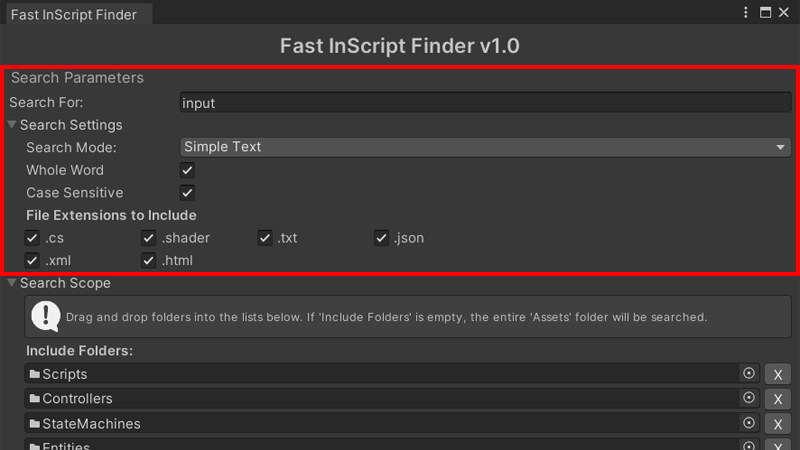
- Search For: The main field where you enter the text or Regex pattern you are looking for.
- Search Settings:
- Search Mode: Switch between
Simple Text(exact search) andRegex(advanced pattern search). - Case Sensitive: Check to differentiate between uppercase and lowercase letters (e.g., "Player" vs "player").
- Whole Word: Check to only search for full words (e.g., "Color" will not find "BackgroundColor").
- Search Mode: Switch between
- File Extensions: Quickly select which file types you want to include in the search.
Search Scope
Specify exactly where in your project you want to perform the search for faster, more relevant results.
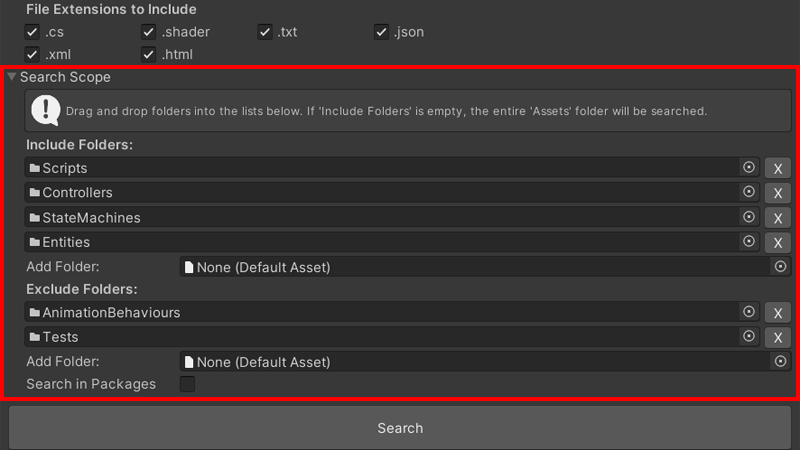
- Include Folders: Drag folders here to limit the search to only those locations. If the list is empty, the entire
Assetsfolder will be searched. - Exclude Folders: Drag folders here to ignore them during the search. Ideal for excluding third-party libraries or generated code.
- Search in Packages: Extend the search to also include files from the
Packagesfolder.
Results Panel
All found matches are displayed here in an interactive and easy-to-navigate format.
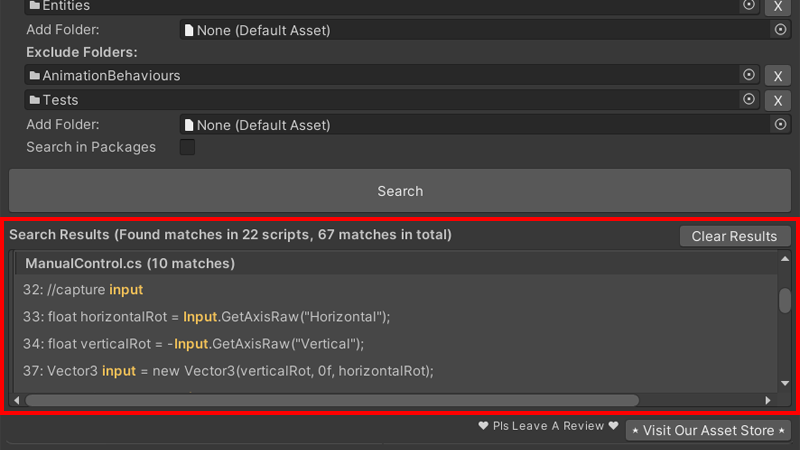
- Stats Header: See at a glance how many matches were found in how many files.
- Grouped Results: Each file with matches gets its own header. Left-click to expand/collapse the list and Right-click to ping the file in the Project window.
- Instant Navigation: Click on any result line to open the corresponding file in your code editor, directly at that line!
- Hover Effect: When you move your cursor over a result line, its color changes to indicate interactivity.
- Clear Results: A button to reset the search and clear the results window.
💡 Practical Use Cases
Fast InScript Finder is not just a tool, but a productivity partner. Here are a few scenarios where it excels:
- Rapid Debugging: Have a NullReferenceException? Search for the variable name to instantly find all places it's used and identify the problem.
- Safe Refactoring: Want to rename a public function? Search for the old function name to find every script that calls it, ensuring you don't miss anything.
- Project Exploration: New to a large project? Search for key terms like
"PlayerHealth"or"GameManager"to quickly understand the architecture and data flow.
❓ Frequently Asked Questions
Q: The search is slow in my project. What can I do?
A: For maximum performance, try to narrow the search scope using "Include Folders" to target the system you are working on. Also, ensure "Search in Packages" is unchecked if you don't need to search there.
Q: Can I search in Scenes or Prefabs?
A: No. Fast InScript Finder specializes in searching the content of text-based files, such as C# scripts (.cs), shaders (.shader), JSON, XML files, etc. It does not scan the binary or serialized data within Scenes and Prefabs.
❤️ Support & Reviews
We hope Fast InScript Finder saves you countless hours of work. If you find this tool useful, please consider leaving a review on the Asset Store. Your feedback is extremely important and helps us continue development!
Leave a ReviewFor technical issues or suggestions, please don't hesitate to contact our support email (available on our Asset Store page).