🚀 Getting Started
Welcome! Thank you for choosing the Modular Cheat Code System. This comprehensive guide will walk you through the installation, setup, and core concepts to help you integrate powerful cheat codes into your Unity project in minutes.
Installation & Initial Setup
Try Demo Scene WebGL FPS Demo.- Download and import the asset from the Unity Asset Store.
- Select the GameObject that will act as the spawn origin. For most FPS/TPS games, this should be your Player GameObject.
-
With your Player GameObject selected, add the
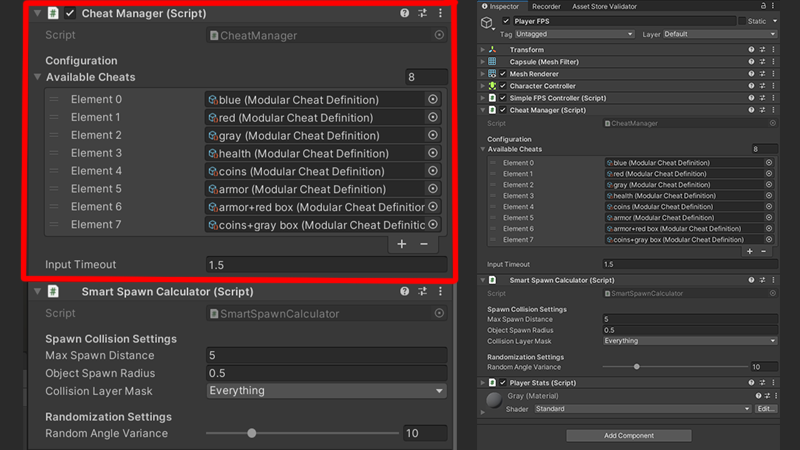
CheatManager.csscript as a component. TheSmartSpawnCalculator.csscript will be added automatically as a dependency.
Important Note on Script Placement: The placement of the CheatManager.cs is crucial for the spawning system. The SmartSpawnCalculator.cs uses the Transform of this GameObject (its position and forward direction) as the starting point to find a safe spawn location. By placing it on the player, you ensure that objects will always spawn directly in front of them, just like in classic GTA games.
That's it! The system is now active in your scene and ready for configuration.
🧩 Core Components Overview
The system's power comes from its modular, decoupled architecture. Understanding these core components will help you use the asset to its full potential.
CheatManager.cs
This is the "brain" of the system. It's a MonoBehaviour that actively listens for keyboard input, manages the list of all available cheats, and triggers their actions when a valid code is typed.
ModularCheatDefinition.cs
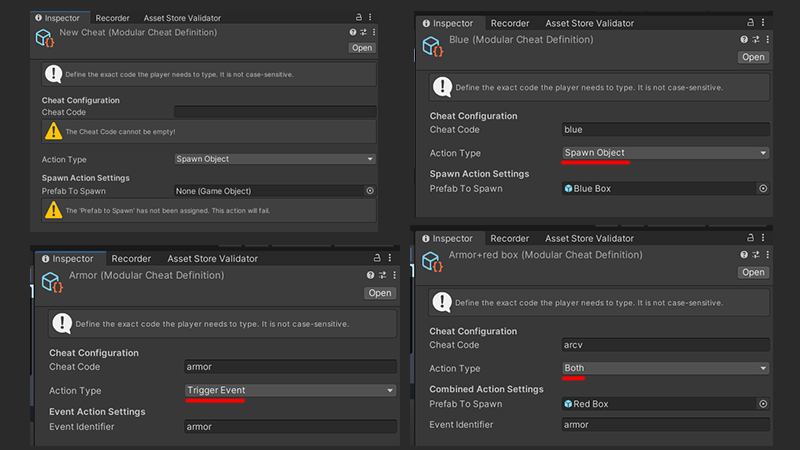
This is a ScriptableObject and the heart of the system's modularity. Each cheat code in your game is a separate asset file. Here you define the cheat's code, its action (Spawn, Trigger Event, or Both), and the necessary data (prefab or event ID).
SmartSpawnCalculator.cs
A helper component that ensures your spawned objects don't get stuck in walls. It uses a SphereCast to find a safe, collision-free position in front of the player before instantiating a prefab.
CheatEventManager.cs
A static class that acts as a central communication hub. When a cheat with the TriggerEvent action is activated, this manager broadcasts a signal that any other script in your project can listen to, creating a powerful, decoupled workflow.
💡 How to Use & Practical Examples
This system is designed to be incredibly flexible. Here are some practical examples to inspire you and showcase how each action type can be used to create classic cheat experiences.
Using `SpawnObject`
This action type is perfect for instantly bringing physical objects into the game world. The SmartSpawnCalculator will ensure they appear in a safe location in front of the player.
- Spawn a Sports Car: Create a cheat with the code "FASTCAR" and assign your sports car prefab.
- Get a Weapon Set: Use the code "WEAPONSET1" to spawn a powerful shotgun pickup.
- Drop a Health Pack: Type "NEEDHEALTH" to make a health kit appear at your feet.

Using `TriggerEvent`
This is the most powerful action for interacting with your game's systems. It sends a message to your other scripts, telling them to perform an action. It's ideal for changing player stats or game states.
- God Mode: Create a cheat "INVINCIBLE" with the event ID "TOGGLE_GOD_MODE". Your `PlayerHealth` script can listen for this ID and set a boolean `isInvincible` to true.
- Add Money: Use "CASHMONEY" with the event ID "ADD_MONEY_1000". Your `PlayerWallet` script can listen and add 1000 to the player's balance.
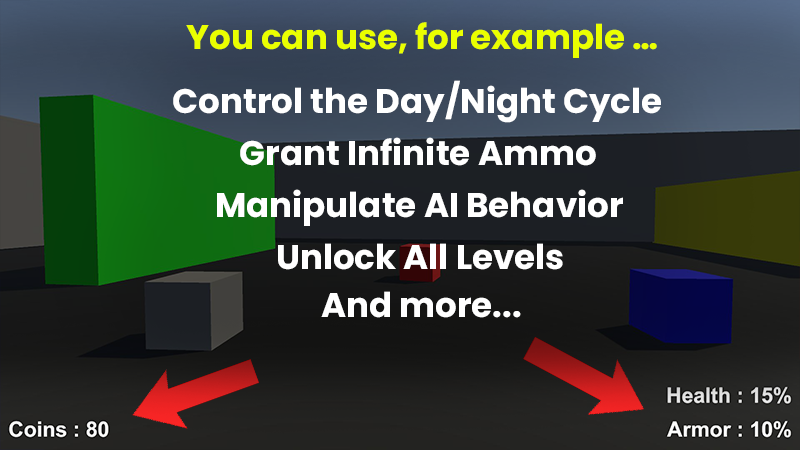
- Infinite Ammo: A cheat "NOREL OAD" with the event ID "INFINITE_AMMO" can tell your `WeaponManager` to stop consuming ammo.
Using `Both`
Combine the power of spawning an object and triggering an event with a single code. This is perfect for situations where you want to give the player an item and immediately make it more powerful.
- Super Weapon & Max Ammo: Create a cheat "SUPERWEAPON" that spawns a rocket launcher prefab AND triggers the event "MAX_ALL_AMMO". The player gets the new weapon and instantly has full ammunition for it.
- Spawn a Jetpack & Enable Flight: Use "FLYHIGH" to spawn a jetpack prefab that attaches to the player, and simultaneously trigger the "ENABLE_FLIGHT_MODE" event in your character controller.
🎮 Included Demo Cheats
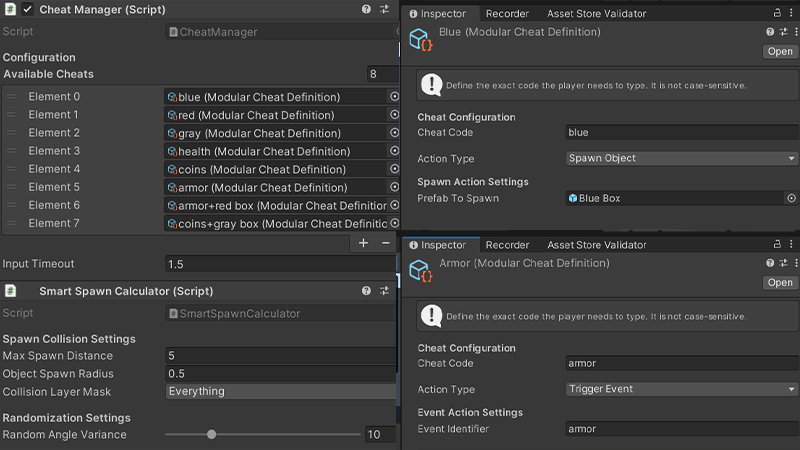
The included demo scene comes with several pre-configured cheats to demonstrate how each Action Type works out of the box. Use these as a reference for creating your own!
SpawnObject Examples
These cheats will spawn a simple colored box in front of the player.
- Spawn Red Box: Type
REDto spawn a red-colored box. - Spawn Blue Box: Type
BLUEto spawn a blue-colored box. - Spawn Gray Box: Type
GRAYto spawn a gray-colored box.
TriggerEvent Examples
These cheats interact with the PlayerStats.cs script included in the demo to modify player attributes.
- Add +15 Health: Type
HEALTHto add 15 points to your health. - Add +10 Armor: Type
ARMORto add 10 points to your armor. - Add +80 Coins: Type
COINSto add 80 coins to your balance.
Both Examples
These cheats demonstrate the power of executing two actions with a single code.
- Add +10 Armor & Spawn Red Box: Type
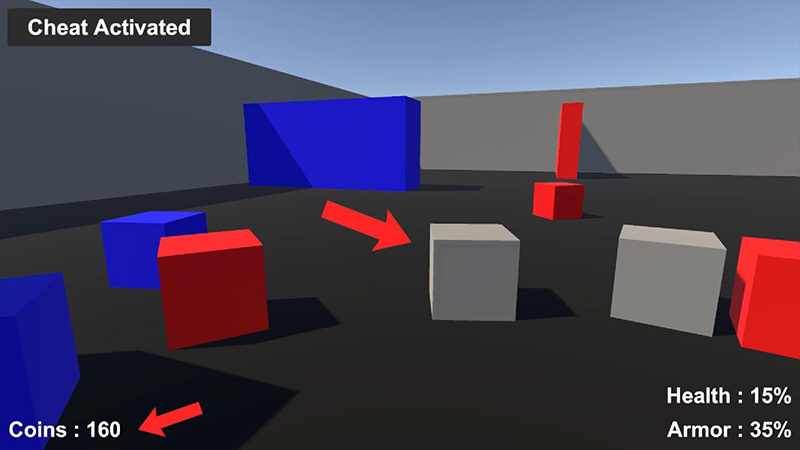
ARCVto receive 10 armor points and spawn a red box simultaneously. - Add +80 Coins & Spawn Gray Box: Type
NRTVto receive 80 coins and spawn a gray box simultaneously.
🛠️ Creating Your First Cheat
Creating new cheats is designed to be a fast, intuitive process that happens entirely within the Unity Editor. Here’s a step-by-step guide to creating a cheat that spawns a vehicle.
- Create the Definition Asset: In your Project window, right-click and navigate to
Create > Modular Cheat System > Cheat Definition. Name the new file something descriptive, like "Cheat_SpawnCar". - Configure in the Inspector: Select the new asset.
- In the
Cheat Codefield, type the code the player will use, e.g., "GIVECAR". - Set the
Action TypetoSpawnObject. - Drag your car prefab into the
Prefab To Spawnfield.
- In the
- Assign to the Manager: Select your
CheatManagerGameObject in the scene. Drag your "Cheat_SpawnCar" asset into theAvailable Cheatslist. - Activate in Game: Run the game and simply type "GIVECAR" on your keyboard. The car will instantly spawn in front of you!
💡 Advanced Usage: Triggering Events
The true power of this system lies in the TriggerEvent action type, which allows you to communicate with any of your existing game scripts without creating messy dependencies. This is perfect for cheats that grant health, add ammo, or toggle god mode.
How It Works
When a TriggerEvent cheat is activated, it sends its unique Event Identifier string through the CheatEventManager. Your scripts can "subscribe" to this event and react whenever they hear the specific ID they are listening for.
Example: Creating a "Full Health" Cheat
Let's say you have a PlayerStats.cs script. Here’s how you can make it listen for a health cheat.
Step 1: Create the Cheat Definition
Create a new ModularCheatDefinition asset. Configure it as follows:
- Cheat Code:
HEALME - Action Type:
TriggerEvent - Event Identifier:
ADD_HEALTH(This is a custom ID you define)
Don't forget to add this new asset to the CheatManager's list.
Step 2: Modify Your Player Script to Listen
Open your existing PlayerStats.cs (or any other relevant script) and add the following code. The comments explain each part of the simple integration process.
using UnityEngine;
// Make sure to include the system's namespace
using ModularCheatCodeSystem;

public class PlayerStats : MonoBehaviour
{
    public int currentHealth = 50;
    public int maxHealth = 100;

    // STEP 1: Subscribe to the event manager when this script is enabled.
    private void OnEnable()
    {
        CheatEventManager.OnCheatTriggered += HandleCheatInput;
    }

    // STEP 2: Unsubscribe when the script is disabled to prevent errors.
    private void OnDisable()
    {
        CheatEventManager.OnCheatTriggered -= HandleCheatInput;
    }

    // STEP 3: Create the handler function that will be called by the event.
    private void HandleCheatInput(string eventID)
    {
        // Check if the received event ID is the one we're listening for.
        if (eventID == "ADD_HEALTH")
        {
            Debug.Log("Health cheat activated! Restoring health.");
            currentHealth = maxHealth;
            // Optionally, update your UI here.
        }
    }
}
And that's it! Now, whenever the player types "HEALME", your PlayerStats script will hear the "ADD_HEALTH" event and execute your custom logic, restoring the player's health to full.
❓ Frequently Asked Questions
Q: Why isn't my cheat activating in the game?
A: The most common reasons are: 1) The cheat code is misspelled. 2) The ModularCheatDefinition asset has not been added to the Available Cheats list on your CheatManager component. 3) The cheat is not configured correctly (e.g., a missing prefab) - check the console for warnings at game start.
Q: Can I have cheats that take arguments, like "SPAWN GRENADES 10"?
A: Version 2.0 does not support arguments directly in the cheat code. However, you can easily achieve this by creating a separate cheat definition for each value (e.g., a cheat "GIVE10GRENADES" with an event ID of "ADD_10_GRENADES").
❤️ Support & Reviews
We hope this asset saves you countless hours and adds a fun, classic feature to your game. If you find the Modular Cheat Code System useful, please consider leaving a review on the Asset Store. Your feedback is extremely valuable and helps support future development and updates!
Leave a Review on the Asset StoreFor technical support, feature requests, or any other questions, please contact our support email (available on our Asset Store page).